Sending Automatic Reports/Notifications by Email in Datadog
To send a report or notification by email through Datadog, there are two options.
1. Create and Share a Dashboard
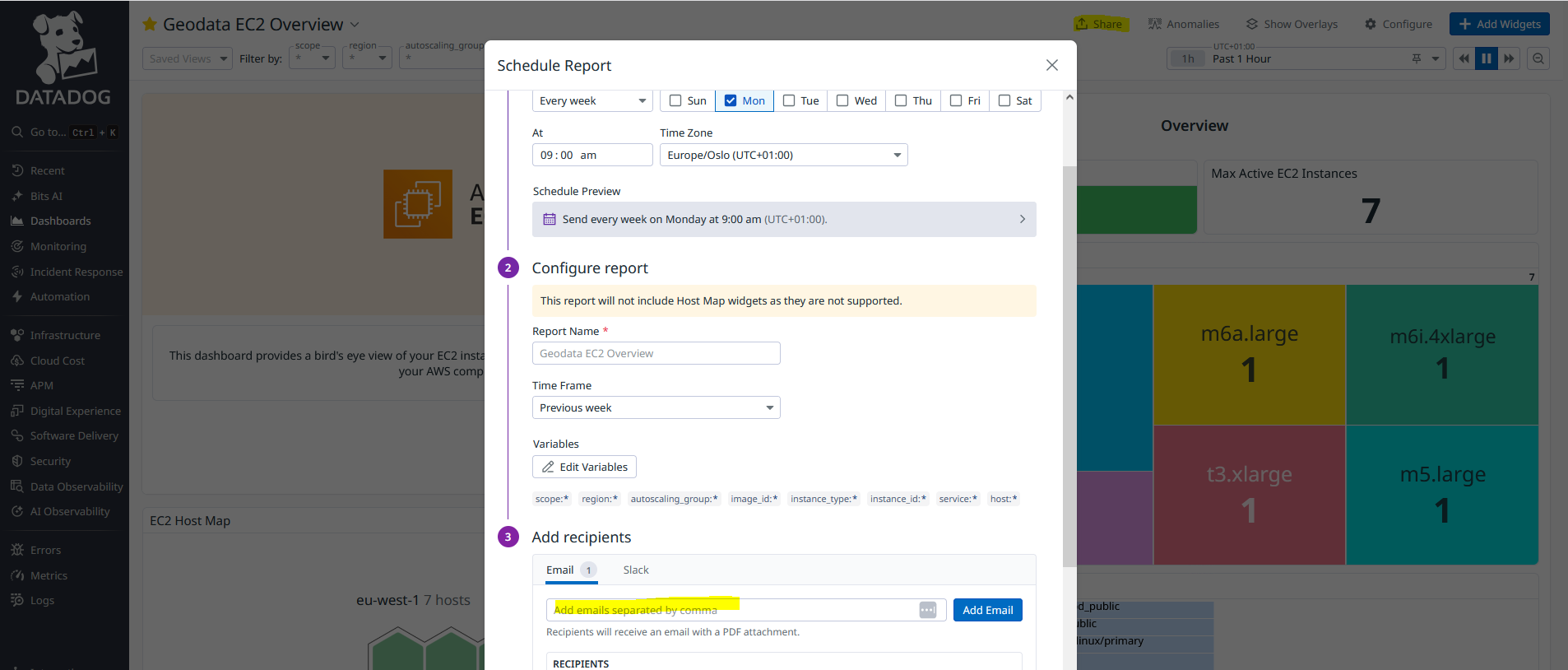
You can create a dashboard and share it as a scheduled report.
When a dashboard is shared as a scheduled report, Datadog sends an email with a PDF report attached.
To schedule a report:
- Go to Dashboards → New Dashboard, create a dashboard with the required widgets, and save it.
- Open the created dashboard.
- Click the Share button at the top of the page.
- Select Schedule report.
- Set the desired schedule.
- Configure the report settings.
- Choose the recipient(s).
Datadog will then automatically send the dashboard as a PDF report to the specified email addresses.
For more information see Scheduled reports.
2. Create a Metric Monitor
You can also send email notifications by creating a metric monitor.
- Go to Monitors → New Monitor.
- Select Metric as the monitor type.
- Configure the metric and alert conditions.
In the Configure notifications section, you can add email recipients by typing the email address with the @ symbol.
Example: @test@gmail.com
There is an example monitor called “test send message” that you can review.
Recommendation
Review both options and choose the one that best fits your use case:
- Dashboards are useful for sending regular reports.
- Monitors are useful for sending alerts when thresholds are exceeded.